

Jira is a popular project management tool, but when it comes to test management, its native features often fall short. Managing test cases, executing tests, and tracking results require additional configuration and integrations. In this guide, we’ll walk through setting up Jira for test management, highlight common bottlenecks, and explore useful add-ons to enhance your testing workflows.
1. A Basic Process to Manage Test Cases in Jira
Let’s take a look at how teams use Jira to manage their testing process:
Organizing Requirements and Test Cases
Initially, teams often placed both requirements and test cases in the same Jira project, thinking it would simplify the process. However, they quickly realized this approach created confusion. With both requirements and test cases in the same project, it became difficult to track the status of each. Therefore, many teams began separating their work into two distinct projects.
Requirement projects
The first project was dedicated to requirements management. This project helped teams clearly structure the hierarchy of requirements. For example, a requirement like “The system must allow users to log in securely” could be broken down into sub-requirements like “Support two-factor authentication” and “Ensure password strength is enforced“. These requirements could be represented as Epic, Story, Task, and Sub-task to illustrate the hierarchy order in the requirements project.
In this project, teams just need to set up a Kanban board. They will update the testing progress of requirements based on Jira status: To Do, In Progress, and Done. This setup allowed teams to clearly track which requirements were ready for testing and which were still under development.
Test Management project
The second project focused on managing test cases. Unlike the requirements project, these ones require more configuration for those that Jira doesn’t natively support. Teams often use custom fields, such as adding a “Test Case Status” with values like Todo, Blocked, Pass, and Failed.
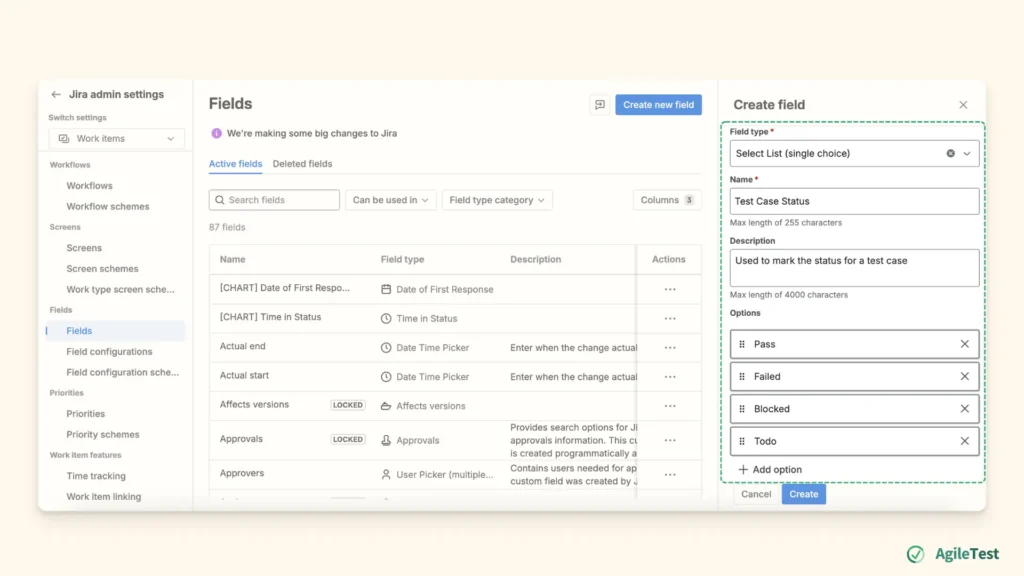
After creating the custom fields, you’ll need to configure custom screens to display custom fields in your workflow. For example, you can customize a screen that displays Test Case Status, along with execution results, comments, or attachments. This ensures that testers and team members can see all the relevant test details at a glance.
Setting Up Jira View Filters
For the next step, teams continue to create Jira filters. These filters help you sort and display the data you need, especially when setting up Jira dashboards. In fact, Jira Dashboards rely on filters to define which data to show. Without filters, your dashboard might show all issues from the project, which can be overwhelming and hard to track
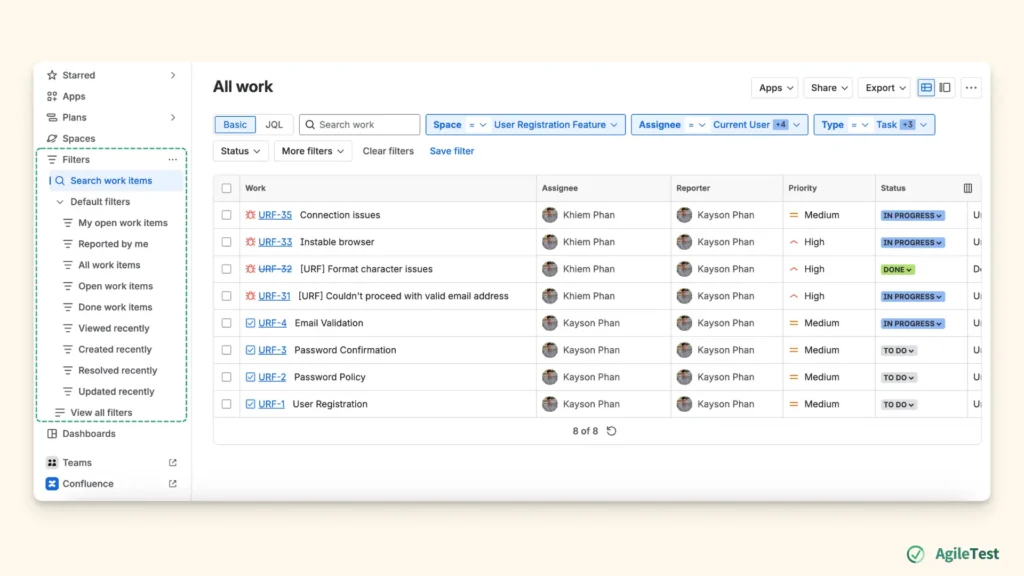
Once you’ve set up filters to track specific data, such as “failed test cases” or “in-progress tests” you can use these filters to create tailored dashboards that show only the information you need. For each dashboard, you’ll need to create a new filter. For instance, if you want a dashboard showing only Blocked test cases, create a filter that captures that status. Similarly, you can set up filters to view test cases by status, priority, or linked requirements.
Creating Jira Dashboard
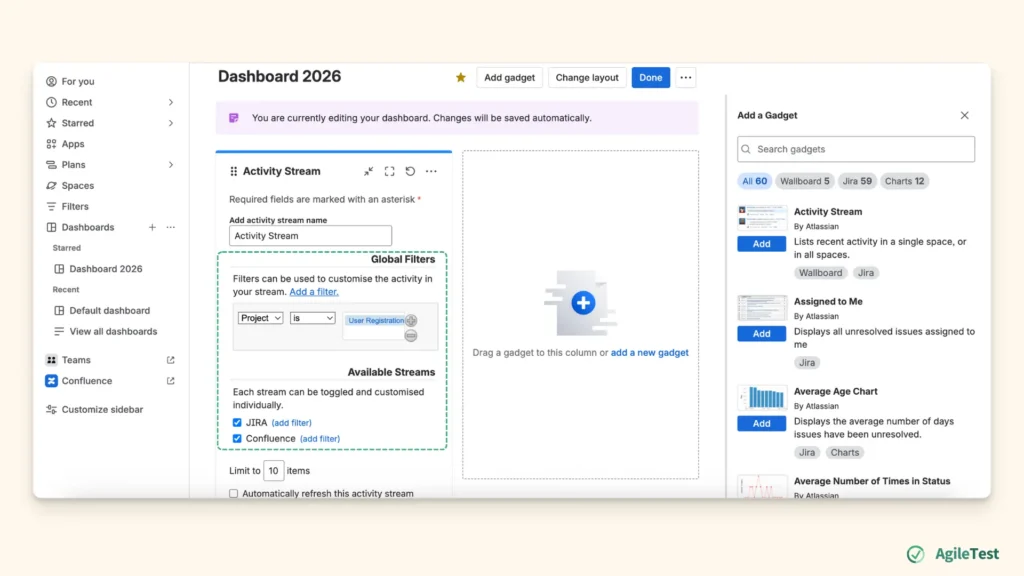
Jira Dashboards allow teams to gather test results, visualize key data, and share progress with stakeholders in a centralized view. They help track the project health, monitor metrics, and highlight areas that need attention, such as defects or failed tests. However, Jira widgets are not designed for testing metrics only. So, teams often need to get creative with the limited widgets available to better align dashboards with testing requirements.
2. What Can Become the Bottlenecks?
Since Jira is not a native tool for testing, it requires significant manual customization to fit testing workflows. Although Jira allows users to tailor their processes, this customization can be time-consuming.
Too Many Manual Actions in the Flow
When teams manage requirements and test cases across different projects, they face the challenge of switching contexts frequently. While it may not consume a lot of time, looking for different test items on different screens can be distracting. Therefore, illustrating the relationship between requirements and test cases becomes more complex, since not everything is on the same page.
Additionally, reusing test cases across different test cycles or sprints can be challenging in Jira. Without a simple way to link test cases, teams often end up creating duplicate test cases. For example, if a team tests a login feature in one sprint but needs to run the same test in a future sprint, there’s no easy option to reuse or call the original test case. This forces the team to create the same test case again, which is repetitive and prone to mistakes.
Moreover, teams often need to create new filters each time to generate reports. This process can become repetitive, especially for large projects with numerous test cases. If a team wants to generate a report for failed tests of each sprint, they need to create a new filter for that specific sprint. Each time the testing scope changes or new test cases are added, the filters need to be updated accordingly. Otherwise, it can lead to inaccurate issues in testing reports.
Little or No Support or Test Automation
Although Jira offers a powerful REST API, it lacks built-in support for integrating with test automation tools like JUnit, Selenium, or Cucumber. This means teams using automated testing can’t easily link their test results with the manual tests tracked in Jira.
As a result, automated and manual testing become siloed, making it difficult for teams to get a complete view of testing progress. The separation leads to more manual effort to track everything, reducing real-time visibility and overall efficiency.
3. How to Choose the Right Jira Add-on Test Management Solution
While Jira can be customized for test management, its native features are limited, especially for handling comprehensive test management workflows. To address these limitations and use Jira as a test management tool, many teams look for Jira add-ons that provide advanced functionality and better integration with testing processes. When choosing the right add-on, consider the following factors:
Testing Features: Fulfill Your Testing Demand and Reduce Manual Configuration
The first criteria is to assess your team’s testing needs and determine how an add-on can support those requirements. Many add-ons offer advanced features like test case generation, test result reporting, CI/CD integration for automated tests. By integrating an add-on, teams can skip much of the manual configuration required when using Jira alone.
For instance, AgileTest provides a range of tools to enhance Jira’s test management capabilities. It offers test plans to help organize the testing process, allowing teams to structure and separate different test executions. You can also make use of built-in reports to track the relationship between test cases, requirements, and defects.
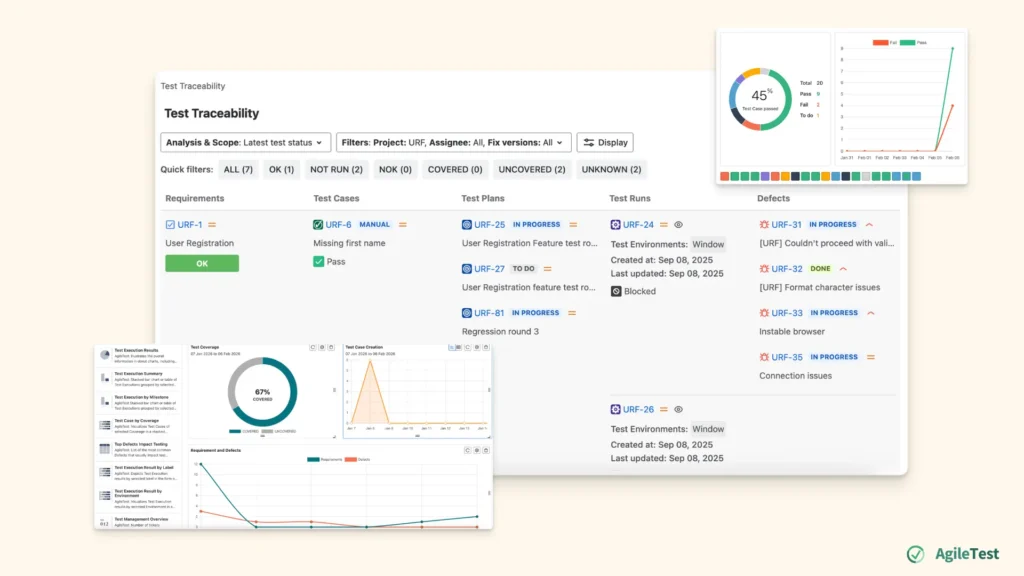
Learn more about key features of top 6 test management tools for Jira here.
Jira Plugin: Adoption with Low Learning Curve
The second criterion is to choose a Jira plugin or a standalone tool with Jira integration. While both options have their pros and cons, plugin types should be prioritized if team are familiar with Jira’s workflow. It allows your team to continue using the Jira interface they know, avoiding extensive retraining or resistance to change. This leads to a smoother adoption process and ensures your team stays efficient before and after tool migrations.
Explore about Top 10 Jira Plugin for Test Management in 2026
AI Integration: Automate for Scalability
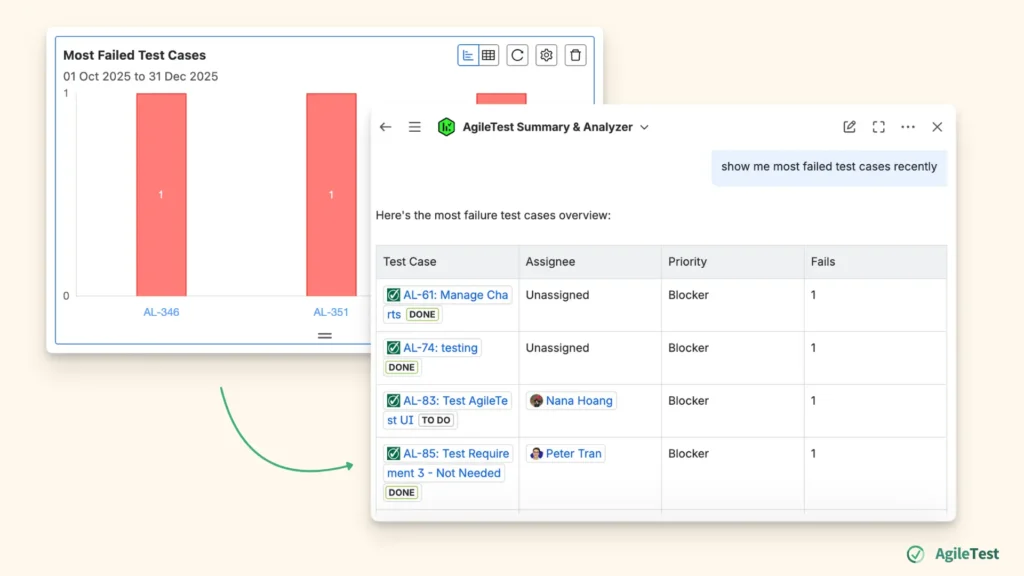
As testing needs grow, AI capabilities to help teams scale their testing efforts are emphasized. Some agents, such as AgileTest Summary & Analyzer can help you analyze results to identify any gaps in the testing process. Others, like AgileTest Generator, can assist you in preparing test cases based on your Jira requirement description. By leveraging these AI-driven tools, teams can enhance test management, make data-driven decisions, and automate repetitive tasks.
Final thoughts
In conclusion, using Jira as a test management tool offers many advantages, especially for teams familiar with itsworkflows. However, to overcome its limitations, it’s essential to address its limitations by integrating Jira with the right add-ons and tools. By carefully evaluating your team’s needs, adopting the right tools, and leveraging AI-driven features, you can optimize Jira to serve as a test management platform that scales with your growing testing demands.
AgileTest is a Jira Test Management tool that utilizes AI to help you generate test cases effectively. Try it now