
Test Management Jira Tutorial will be one of the most searched you want to look for when you are new to Jira Atlassian Marketplace. Many testing tools in JiraTest Management for Jira is an essential part for teams to enhance their testing process and ensure project delivery. However, not always are these tools affordable for teams, especially small-sized ones, to continue using after the trials.
In this article, we’ll guide you through a Test Management Jira tutorial with an example setting up the AgileTest App, a free option for teams of under 10 members regarding Test Management for Jira. We’ll also provide a practical example to show you how AgileTest can optimize your testing activities.
1. How to Set Up Free Test Management for Jira
Install AgileTest App
To begin with, you need to install the Test Management app in Jira. You can only perform this action when you are the Jira admin of the instance.
AgileTest is an Add-on App in Jira for Test Management. To install the AgileTest App on your instance, you can follow these steps:
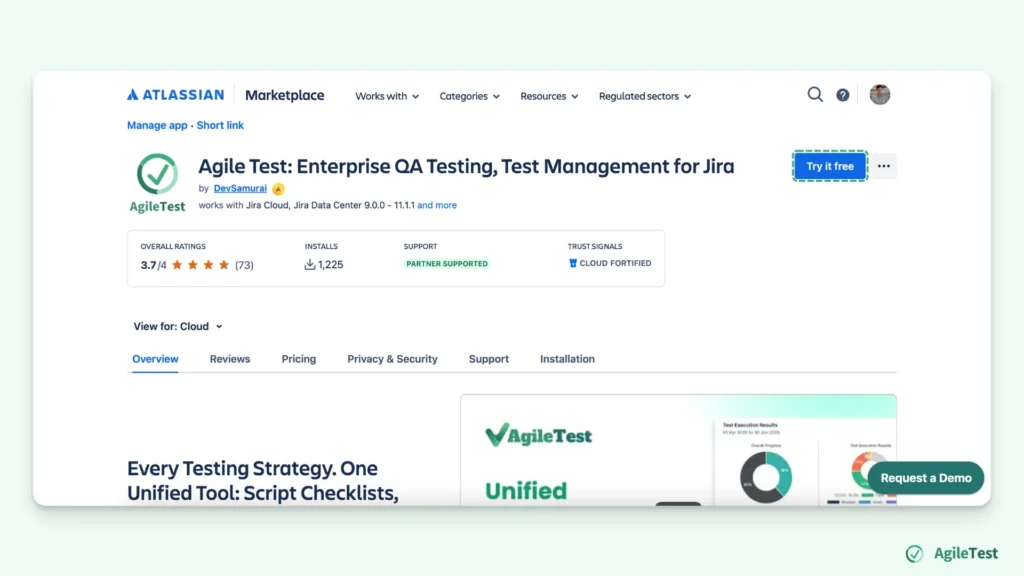
Go to Atlassian Marketplace, find AgileTest App

Click on the “Try for Free” button. AgileTest allows you to have a 30-day free trial and can be used for free when your teams are under 10 members after the trial ends.
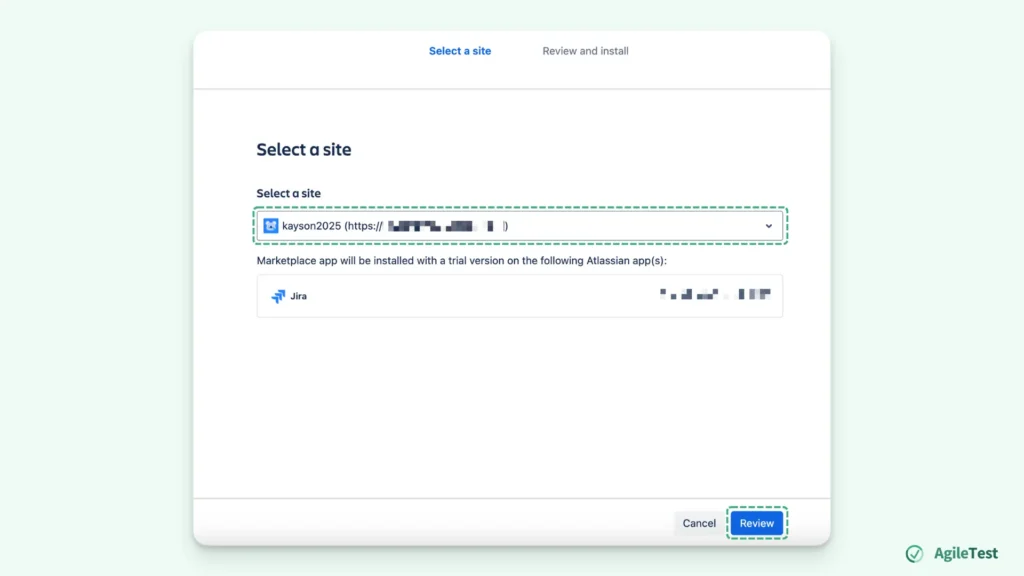
Select the instance that you want to install the AgileTest App on. After selecting your desired instance, click the “Review” button.
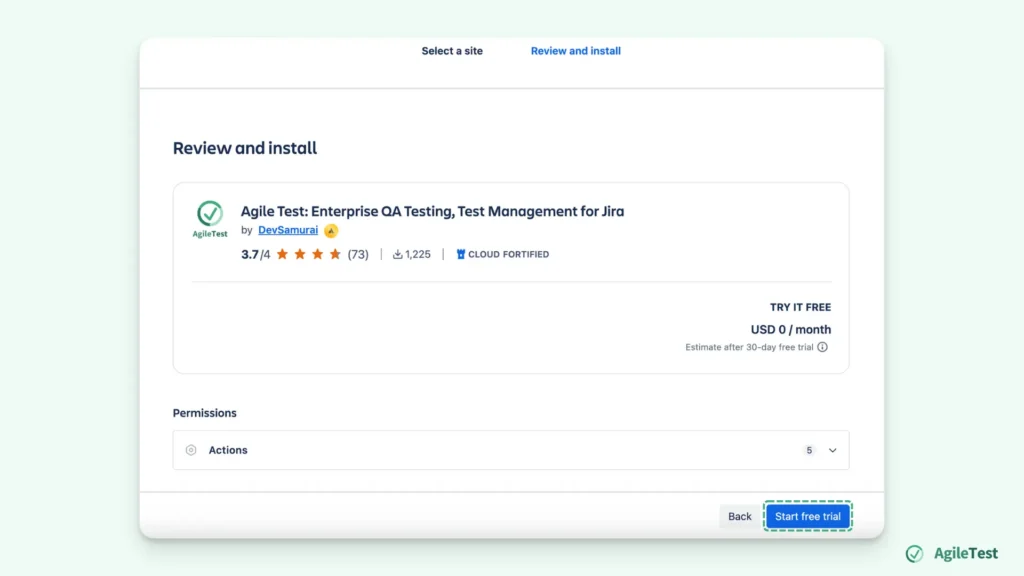
You can review some pricing and data usage information before starting the trial. After making sure that you are fully aware of the agreement, you can hit the “Start free trial” to finish this installation process.
Configure AgileTest App
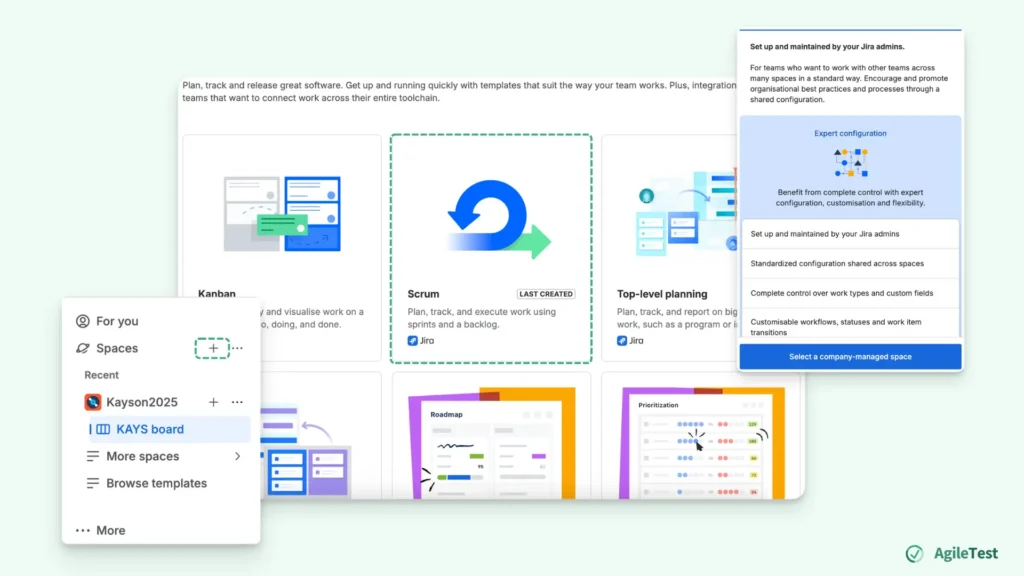
You will need to have a Space on the Instance where you have installed the AgileTest App. You create a new Space on the Jira board, but it needs to be a Scrum format and under Company-managed.
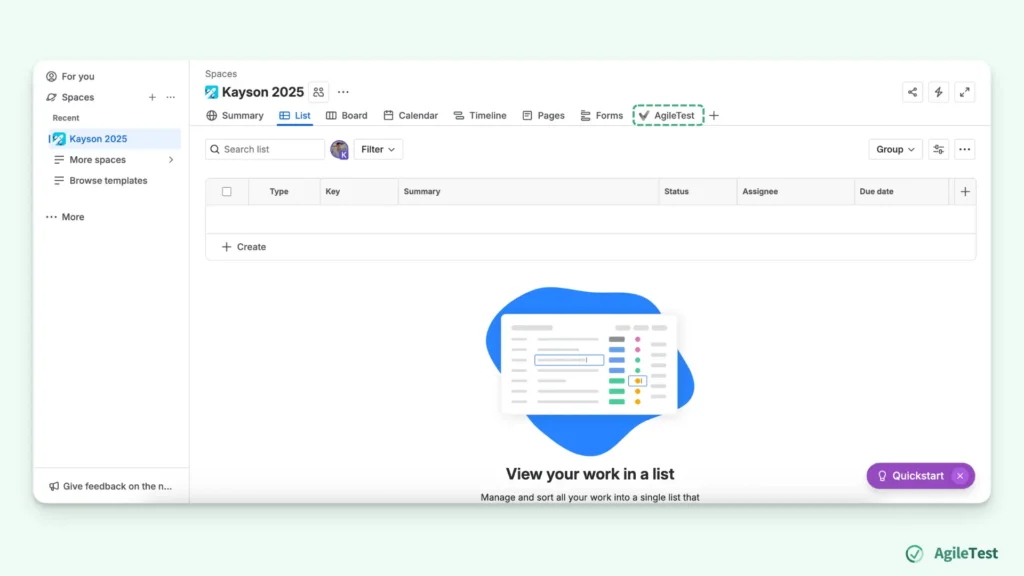
Now, you can access your spaces and click on the AgileTest shortcut to open the app.
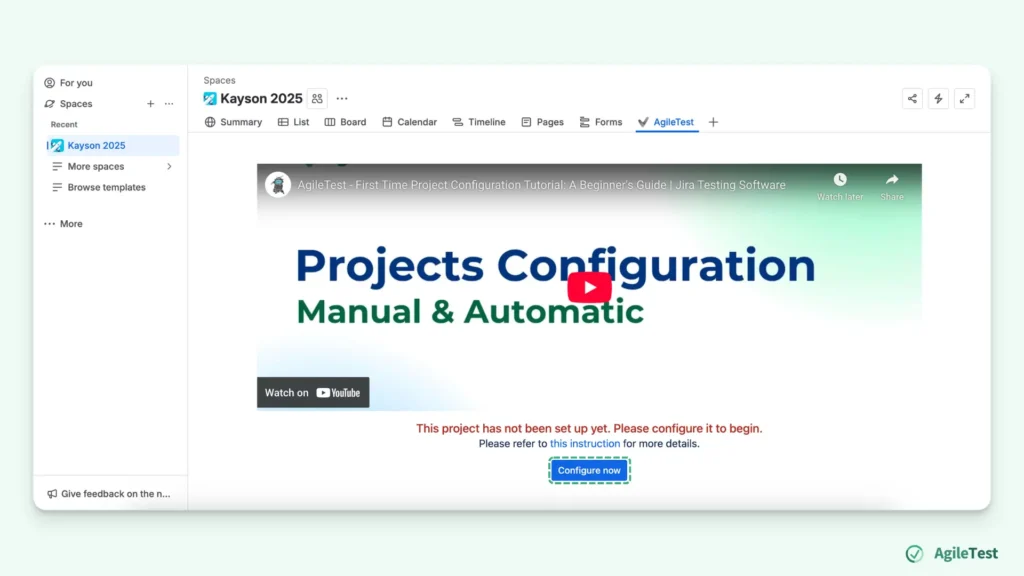
You will be redirected to the configured page when you first access the AgileTest app. Simply choose “Configure now” to continue.
Test Strategies
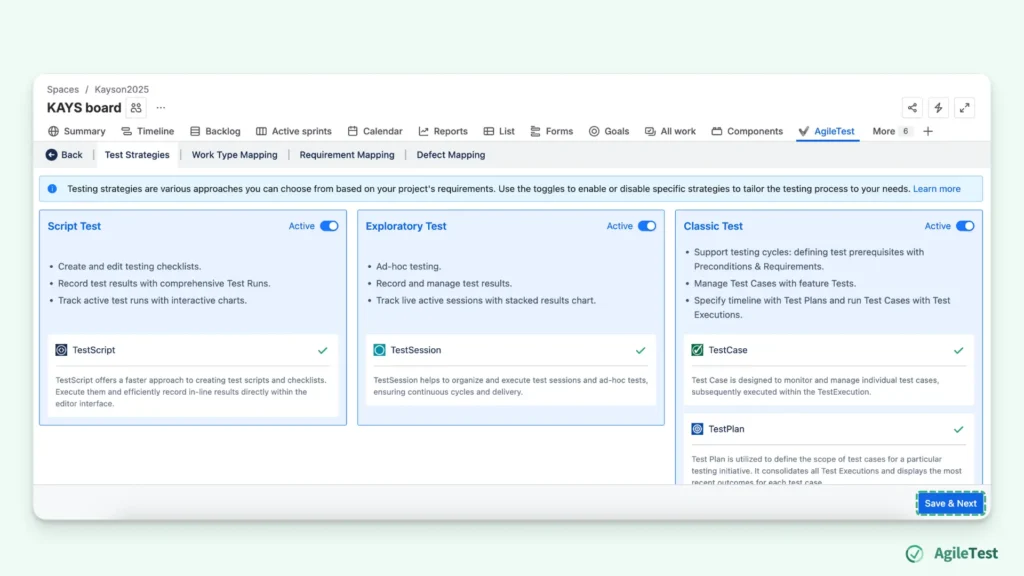
AgileTest offers three testing strategies: Test Script, Test Session, and Traditional Test Case Management.
- Test Script: Acts like a quick checklist that helps you list out test cases and test steps, but does not record any of your testing data.
- Test Session: Supports exploratory testing, allowing you to manage ad-hoc tests and take notes without predefined instructions.
- Test Case Management: Focuses on detailed test planning, incorporating Test Case, Precondition, Test Plan, Test Execution, and Report for comprehensive management.
By default, these testing strategies will be enabled, and you just need to click the “Save & Next” button to continue.
Work Type Mapping
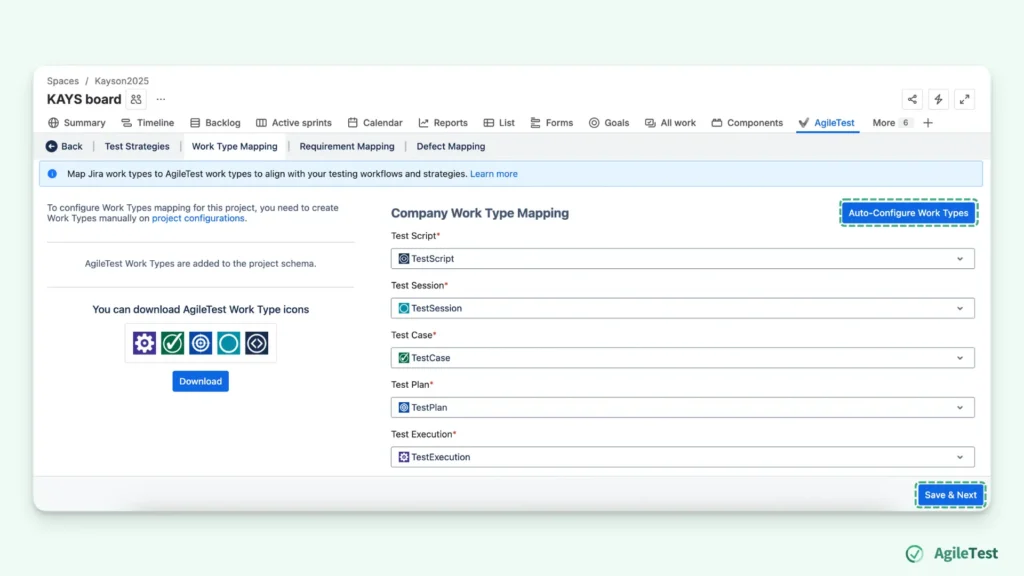
Then, you’ll need to configure the Work Type Mapping. If your project is under Company-managed, you can choose the “Auto-Configuration Issue Types” to fill in directly. If you have previously created your space under Team-managed, you will have to map the work items manually. Once you have finished mapping, choose “Save & Next”
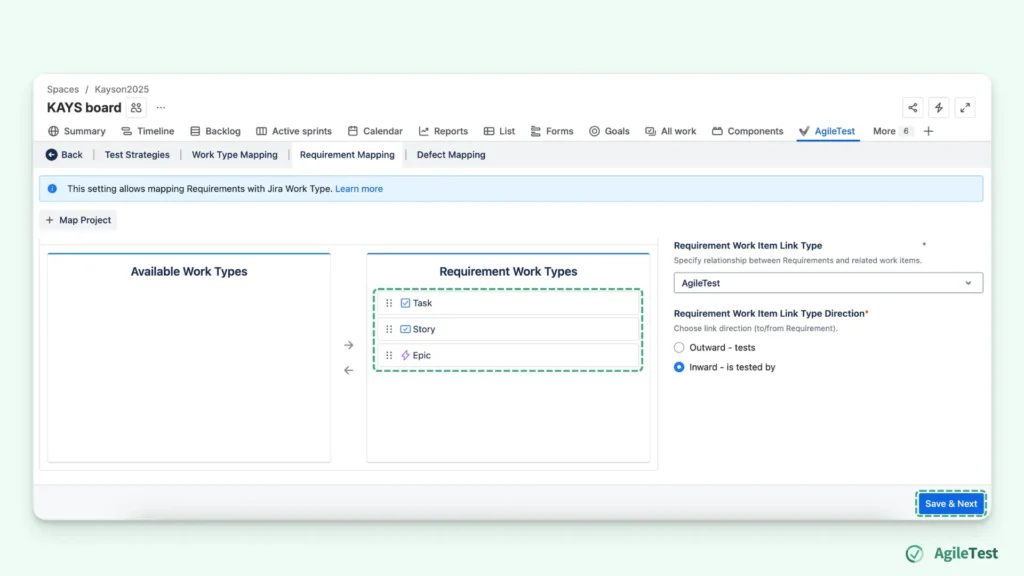
Requirements and Defects Mapping
For the final setup, you will configure the requirements and defects mapping. This setup allows you to link the requirements and defects directly to the test cases. This will help you track and manage your test management activities and generate test reports.
2. Example in Use for AgileTest App
Scenario 1: QA Teams Want to Check the Relationship of Test Cases with Requirements and Defects
After conducting numerous test executions and assigning test statuses to each test case, along with linking defects whenever a bug is encountered, it’s time to focus on the next step: gaining traceability. With several rounds of testing completed, you now need a clear view of how test cases, test plans, and test executions are connected. This traceability allows you to ensure comprehensive coverage, track progress more efficiently, and easily identify any gaps or issues in your testing process.
By linking these elements together, you can track how each test case aligns with the overall test plan and execution, while also ensuring that defects are captured and addressed within the context of the specific test cycle. This organized structure helps improve test management, offering better insights and control over the quality assurance process.
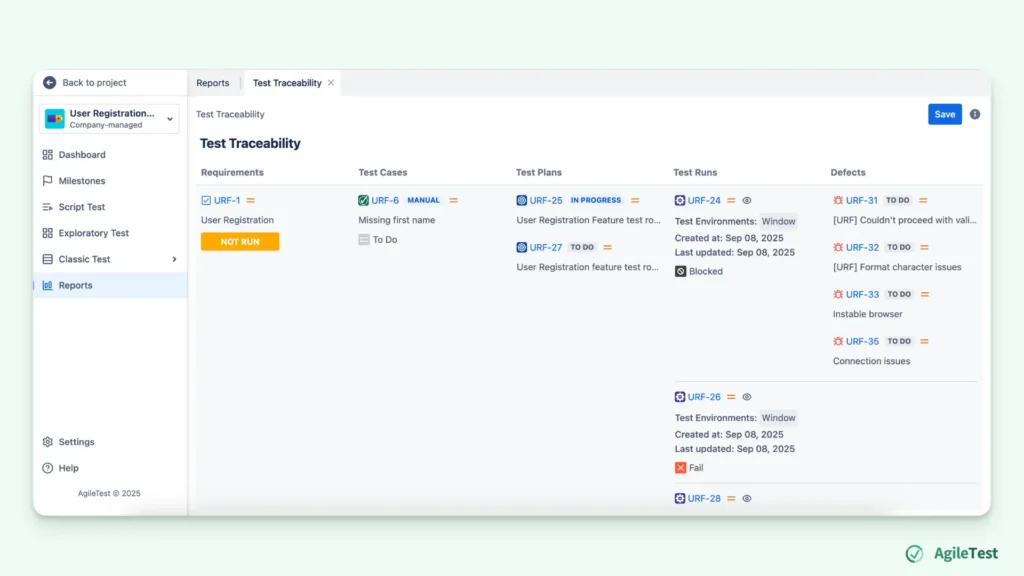
AgileTest’s Traceability Report offers insights into the connections between your work items. It clearly shows which requirements each test case is associated with, providing a direct link to your project’s objectives. The report also outlines the specific test plans and executions where the test cases have been run, giving you a comprehensive view of testing coverage. Additionally, it tracks any defects tied to the test cases, ensuring you can quickly identify critical issues and their impact on your testing efforts. This level of traceability enhances visibility, improves decision-making, and ensures that no test case or defect goes unnoticed.
Scenario 2: QA Teams Find it Hard to Manage A Large Number of Test Cases as the Projects Enlarge
As projects grow in size and complexity, QA teams often face significant challenges in managing an increasing number of test cases. With larger projects, the sheer volume of test cases can become overwhelming, especially when it comes to maintaining consistency, tracking progress, and ensuring coverage across different features and modules.
As the number of test cases increases, it becomes harder to maintain a clear structure. Test cases may be spread across multiple spreadsheets or documents, making it difficult to track which tests have been executed, what their status is, or if they are aligned with the most recent requirements.
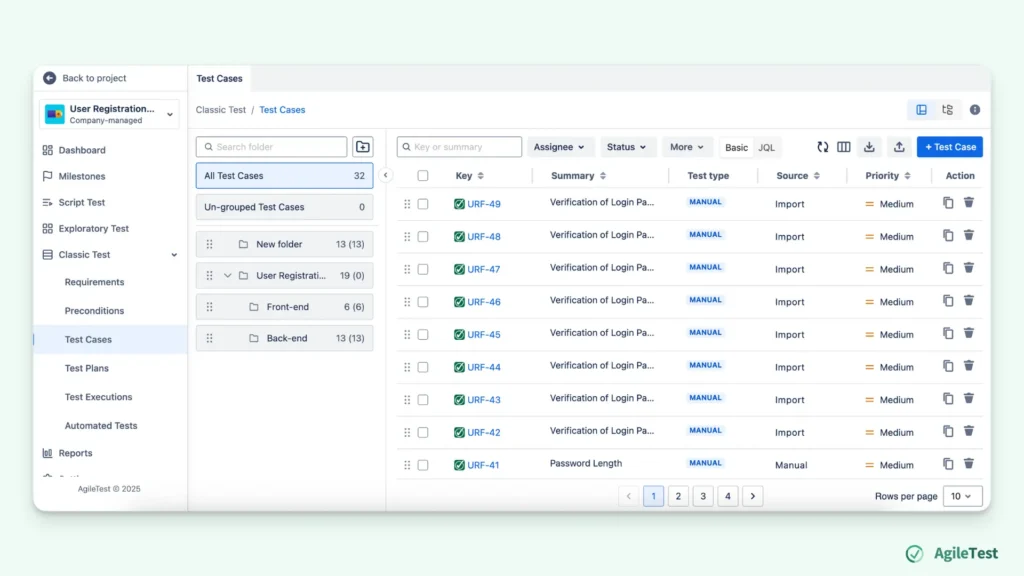
AgileTest’s Test Folders provide a structured way to manage and categorize your test cases into relevant groups. By organizing your test cases based on requirements, features, or other criteria, you can quickly locate the tests you need, saving valuable time. This approach also minimizes the risk of overlooking test cases, as you can directly extract them from the folders, reducing the chances of manual errors and omissions.
Final thoughts
Test Management Jira Tutorial will give you a quick guide when you first try many testing tools in Jira. Setting up the AgileTest App within Jira offers a flexible approach to test management, especially for Agile teams. Whether you need quick, ad-hoc testing or more structured test planning, AgileTest’s strategies provide a clear and organized framework to manage all your testing activities. By following this step-by-step guide, you can easily implement the AgileTest App and tailor it to fit your team’s needs. With its user-friendly interface, AgileTest will enhance your testing process and improve your team’s efficiency and productivity.